
Use an API key to authenticate API requests via Liminal Express.
Liminal Express authenticates your API requests using your account’s API key. The API key is a unique identifier that generates a client ID and secret to access wallets and infrastructure using the Liminal Express API and SDK.
Owners and Admins can create and manage API keys for their respective user accounts. Navigate to the developer dashboard, Dev on your Liminal Vaults account, to create, disable, whitelist, rotate, or delete your API key.
Vaults currently supports multiple API key creation and the following user roles to manage API key management across your organisation:
- Admin: An API key with Admin role assigned has complete access to create, configure and manage wallet operations.
- Initiator: An API key with Initiator role is able to initiate wallet transactions via Express API only.
- Signer: An API key with Signer role is able to sign and approve wallet MPC and multisig transactions only.
- Viewer: An API key with Viewer role is able to read (view-only) wallet and transaction details only.
Note
All assigned roles have read access to wallet and transaction details by default. Refer to the API Key User Roles guide page to learn more about user roles and permission in details.
Prerequisite
- You have created an account within your organisation in Liminal Vaults. Check out the Onboarding guide to onboard your organisation.
- You are an Owner or Admin user. Check User Roles to learn about Liminal Vaults user roles.
- You have downloaded the latest Liminal Express SDK version.
Create an API Key
Liminal Express APIs require an API key to authorize a request, and it acts as a secret that only the client and the server can verify to make API calls. You can consider your key and secret as the required API credentials, like a username (key) and password (secret). When you create an API key, it generates a client ID and a client secret in a CSV file format. Both values are required to authorize a request to Liminal Express and must be saved securely.
The associated fields include:
| Field | Description |
|---|---|
| Name | User-defined label to identify the API key. |
| The email address of the API key owner. | |
| Client ID | A public identifier for the client application that is used to reference the API key. |
| Client Secret | A private, confidential value used to authenticate the client application. Treat it securely like a password. |
| Role | Defines the level of access andor permissions assigned to the API key. Includes Admin, Initiator, Signer and Viewer user roles. |
Refer to the following table to check which API references are valid as per the respective API key’s user role.
Note
- We recommend rotating your key during the required intervals.
- Vaults currently supports 5 API keys (either active or disabled) per organisation. You have to delete your current key to create a new one if the maximum limit is reached.
Steps to create an API key
Follow the steps below:
-
Log in to your Liminal Vaults account.
-
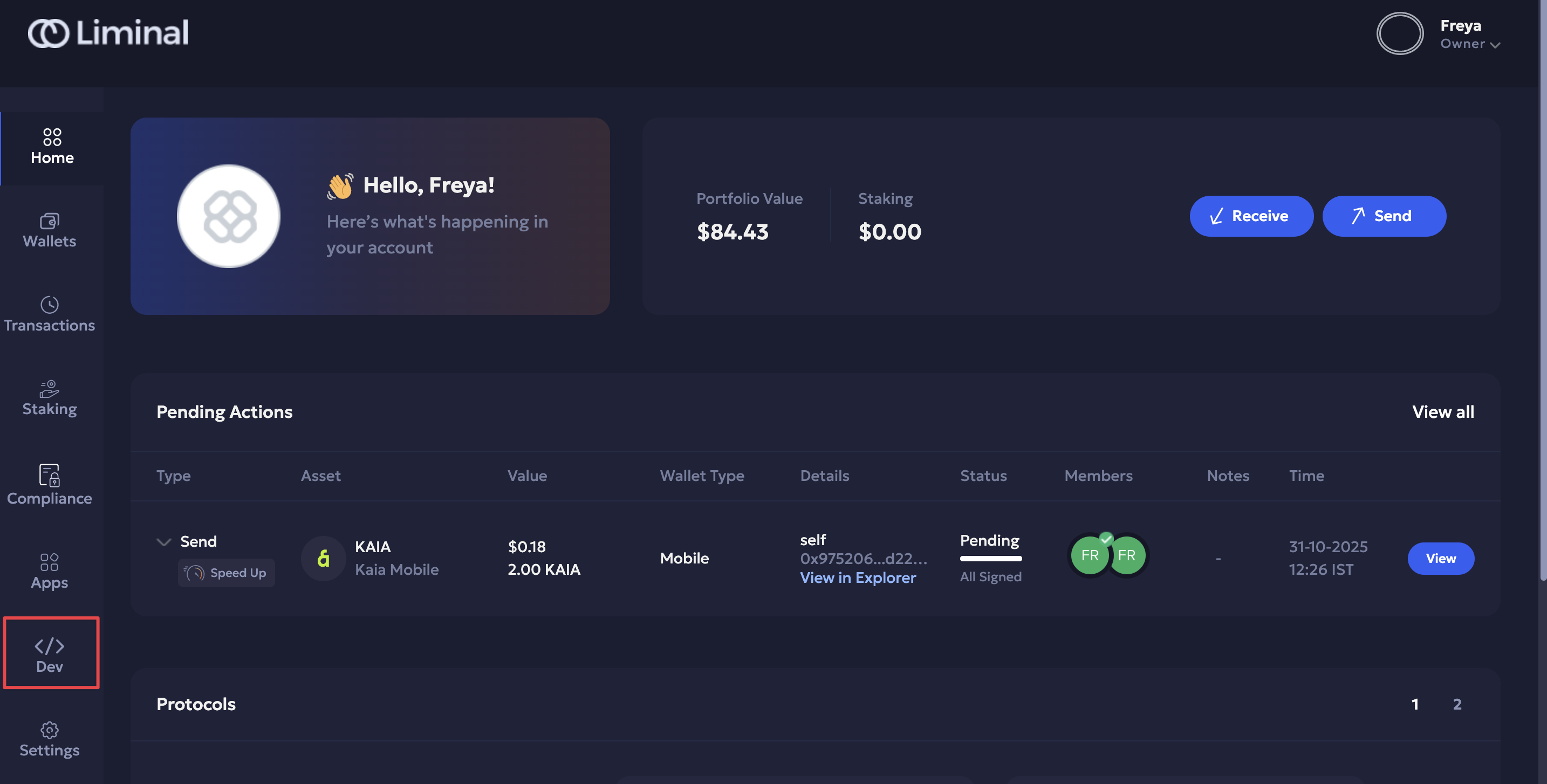
Click Dev in the left navigation bar to navigate to the developer dashboard.
-
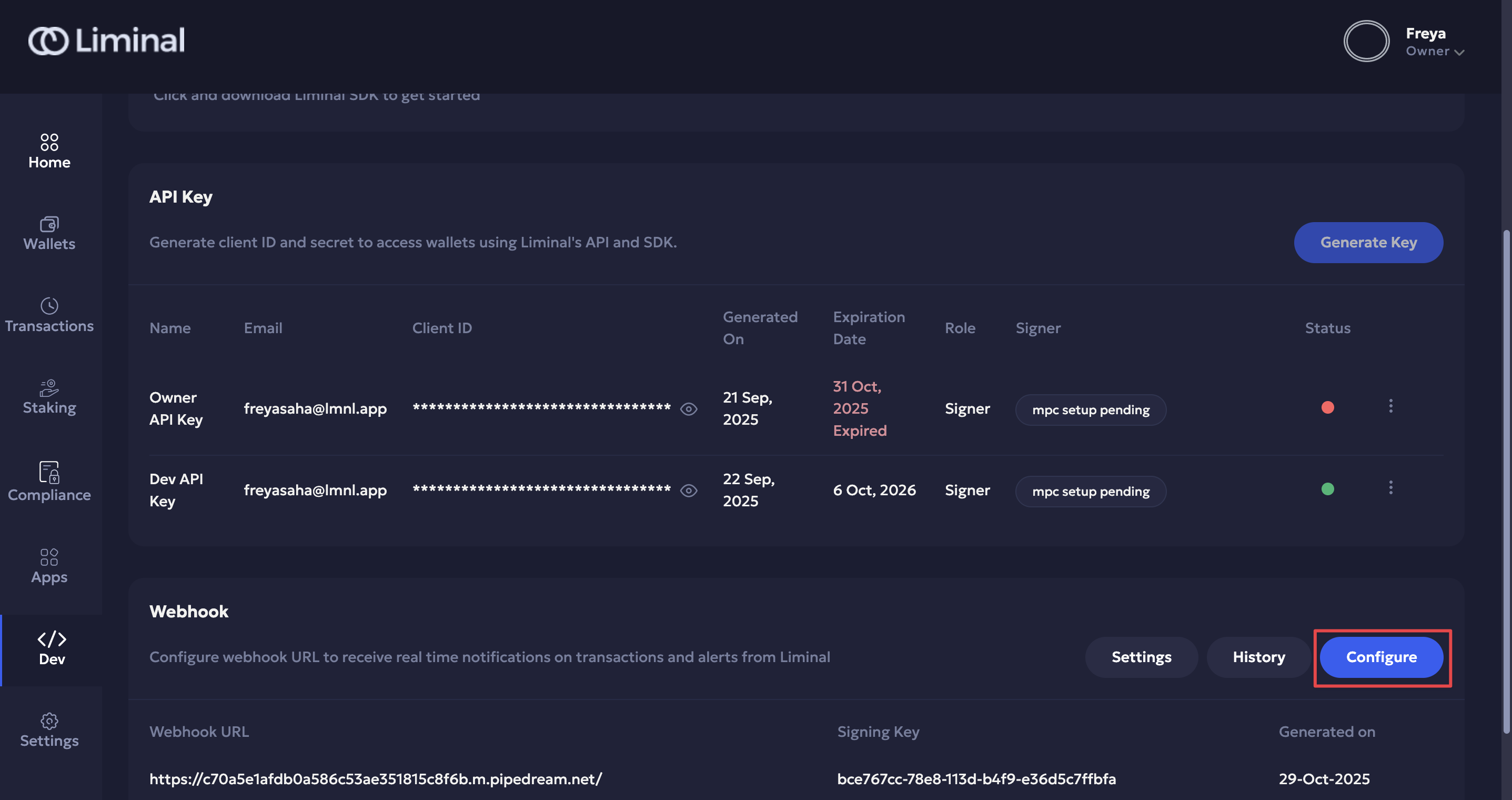
Click Generate Key in the API Key section.
-
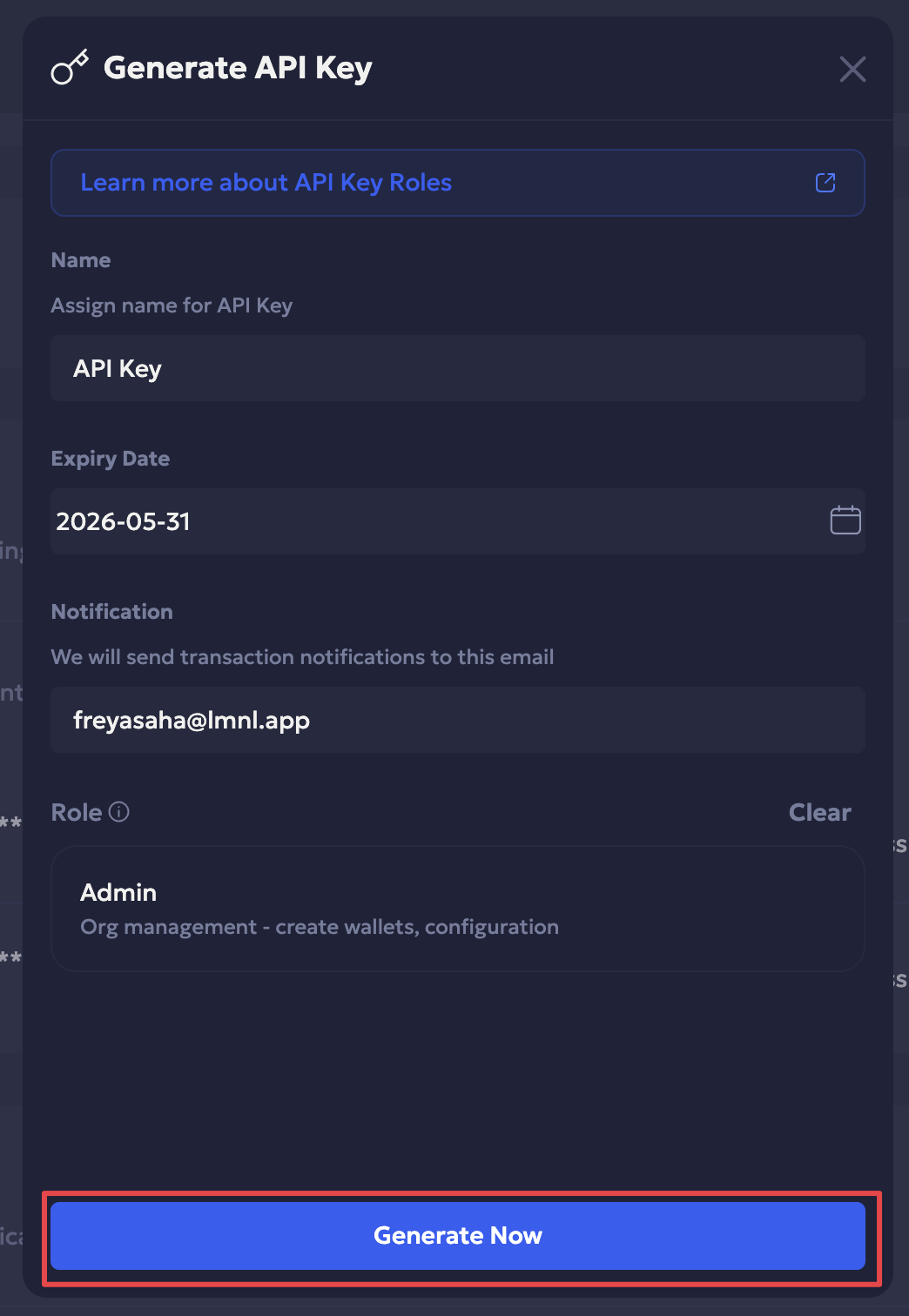
Enter the following fields for the API key:
-
Name: Enter the API key name.
-
Expiry Date: Select its expiry date from the date picker,
-
Notification: Enter a unique email address where you will receive transaction notifications, and
-
Role: Select the user role for the API key from the dropdown to assign its access permission.
Click Generate Now.
-
-
Enter the required 2FA verification code to continue.
-
Click Download client ID and secret to download your API key values. Store it securely; you cannot retrieve it later.
-
Your API key is now active and will appear in the list of API keys in the API key section with a green dot for its status.
Click on the View icon to check your client ID for reference.

-
Before finishing up, we recommend specifying the source and express IP addresses you want to whitelist for your current IP address. Select Click here to navigate to the IP Whitelist panel.
Follow steps 1 to 3 mentioned in the Whitelist Address per Key section to whitelist IP addresses for enhanced security.
-
(Optional but recommended) Configure and implement HMAC secret key on Liminal Vaults and server side as an enhanced secureity layer for your whitelisted API addresses.
Note
- Expiry notifications: Liminal sends reminders to your specified email address in 1-month, 15-day, 7-day, and 1-day intervals before expiration.
- Before expiry: We recommend rotating (regenerating) your API key. Liminal Vaults will generate a new secret ID that you can download and save securely.
- After expiry: An expired API key is revoked and added to the API key list. You will need to create a new API key to access Liminal Express APIs.
Manage API Key
Owners and Admins can:
- Whitelist IP addresses specified for the current API key,
- Add HMAC security authentication via SecureAPI for enhanced protection for whitelisted IP addresses,
- Rotate (regenerate) before it expires,
- Disable/ Enable, and
- Delete it.
You will receive notifications on your Liminal Vaults dashboard when you perform an API key action.
Refer to the Manage my API Key guide to perform the required actions.
API Key Status
An API Key has the following statuses:
| Status | Description | Color / Action |
|---|---|---|
| Active | The API key is currently valid and can be used for requests. | Green, active / rotated |
| Rotated | The API key has been replaced with a new key, and is valid for use. | Green, active / rotated |
| Disabled | The API key is temporarily disabled and cannot make API calls. | Grey, disabled |
| Enabled | A previously disabled key has been re-enabled for use. | Green, re-enabled |
| Deleted | The API key has been permanently removed and cannot be recovered or used. | Red, deleted |
Best Practices
- Save API Key. CSV file securely and treat it privately, like a password.
- Rotate (regenerate) API secrets periodically.
Migrating from Full Access to Multiple API Keys
An existing organisation on Vaults having an active API key has a Full Access role assigned to it. For newer Vaults’ organisations created post May 15, 2026 and having either Express v1.3.16 or higher, will need to have at least one API key with Initiator and Signer roles each to complete a transaction. We recommend the following best practices if you are migrating from having a single full access API key to multiple API keys for your organization:
- Create a unique email address for the API key user. It cannot be an existing user’s email address.
- Managing existing full access API key: You have rotated the key before creating multiple API keys. You also need to generate the required API keys before deleting an existing full access key since it cannot be recovered once deleted.
- Before deleting a full access API Key, you must:
- Create a Signer key and complete the RSA key setup. Create an Initiator key.
- You have completed a transaction successfully.
- To complete a V1 wallet transaction you will only need to use the Create transaction requests API with Signer key.
- To complete a V2 wallet transaction to use Initiator key to call the Create transaction requests API and use the Signer key to call the Submit a transaction API.
Expected Errors and Troubleshooting
- Expected errors on Vaults Web:
-
Email address is in use.
Troubleshooting: You must use a unique email address for the API key. -
Failed to generate API key.
Troubleshooting: Vaults does not allow creating a second API key without completing the initial MPC setup. You can check the status of an incomplete setup by navigating to Settings > Vaults. The API user will have an API Signer Pending status.
- You need to call the Create an RSA key and the Import MPC shard API references.
- Contact organisation Owner to approve MPC shard request from their mobile for the API key user. The API Key user’s status will change to API Signer once approved.
-
- 500 Internal Server Error:
Troubleshooting: You have created a Signer key and completed the RSA key and MPC setup if you are using multiple API keys. Vaults does not allow users to configure a second key with any of the roles until the RSA setup is completed.
{
  "success": false,
  "data": {},
  "message": "API Signer setup is complete. RSA key creation is not required and hence, action will not be performed.",
  "code": "",
  "info": {}
}