
Tron Fee Optimiser
Resource delegation for Tron energy and bandwidth management.
Tron transaction processing typically requires consuming TRX resources, i.e., Energy and Bandwidth for every transaction or when staking Tron assets. This can lead to higher operational cost per transaction, increased failure rates, and the need to manually maintain sufficient TRX balances in deposit wallets.
The Tron Fee Optimiser feature mitigates these issues by delegating the Tron resources, i.e., enabling users to rent Energy and Bandwidth just before consolidation, thereby reducing consumed TRX.
The feature has the following advantages:
- Helps save gas station transaction fees and enables higher USDT transaction optimization.
- Enhances efficiency as the Tron Sprayer is not required to spray wallet assets to the gas station.
- Helps optimize the on-chain transaction cost where users where users pay ~0 on-chain transaction fees, otherwise paying upto 7 TRX per consolidated transaction.
- Provides usage reports including the total number of optimised transactions, the on-chain and average fee saved in USD, and the latest billing cost. Billing cost includes 5 TRX per optimized transaction.
Supported actions:
- Enable/ Disable Rent Resources for your organisation.
- Add Tron deposit wallets to the list of active wallets.
- Delete a wallet from the list of active wallets.
- Detailed fee optimisation insights including resource usage.
- Download report in CSV format.
Advantages
The Tron Fee Optimiser acts as a resource-based model to save transaction fees when consolidating Tron (TRC-20) digital assets via deposit wallets. Here, the following resources are delegated just before consolidation transactions for deposit wallets.
- Energy: Refers to the processing power consumed when executing a smart contract.
- Bandwidth: Refers to the transaction size cost (per byte).
The table below shows the expected TRX consumption per transaction that a user pays for when consolidating the Tron deposit transactions versus the TRX saved when renting resources:
| Use Case | Default (TRX consumed) | Cost for Tron Fee Optimiser |
|---|---|---|
| Existing USDT addresses | Upto 7 TRX | Upto 5 TRX |
| New USDT addresses | Upto 14 TRX | Upto 10 TRX |
The table below shows the estimated savings per-transactions when compounded at scale:
| Transactions | Cost | Savings |
|---|---|---|
| 10,000 | 50,000 TRX | 20,000 TRX |
| 100,000 | 500,000 TRX | 200,000 TRX |
| 500,000 | 2,500,000 TRX | 1,200,000 TRX |
This helps reduce the consolidation cost to upto 30 percent.
Note
- Fallback strategy: In case the Tron fee optimiser fails to successfully optimise a transaction that’s consolidated, the consolidation will use the Tron Sprayer wallet as a fallback solution. It will spray the required assets needed to consolidate a Tron deposit transaction. We recommend you to keep sufficient balance in your Tron Sprayer wallet. Fee rental may fail in case there is insufficient rented resources, timeout or API failures during asset consolidation.
Steps
Refer to the steps below to navigate Tron fee optimiser:
- Sign into your Vaults account.
- Navigate to Settings > Tron Fee Optimiser.
Enable/ Disable strategy
-
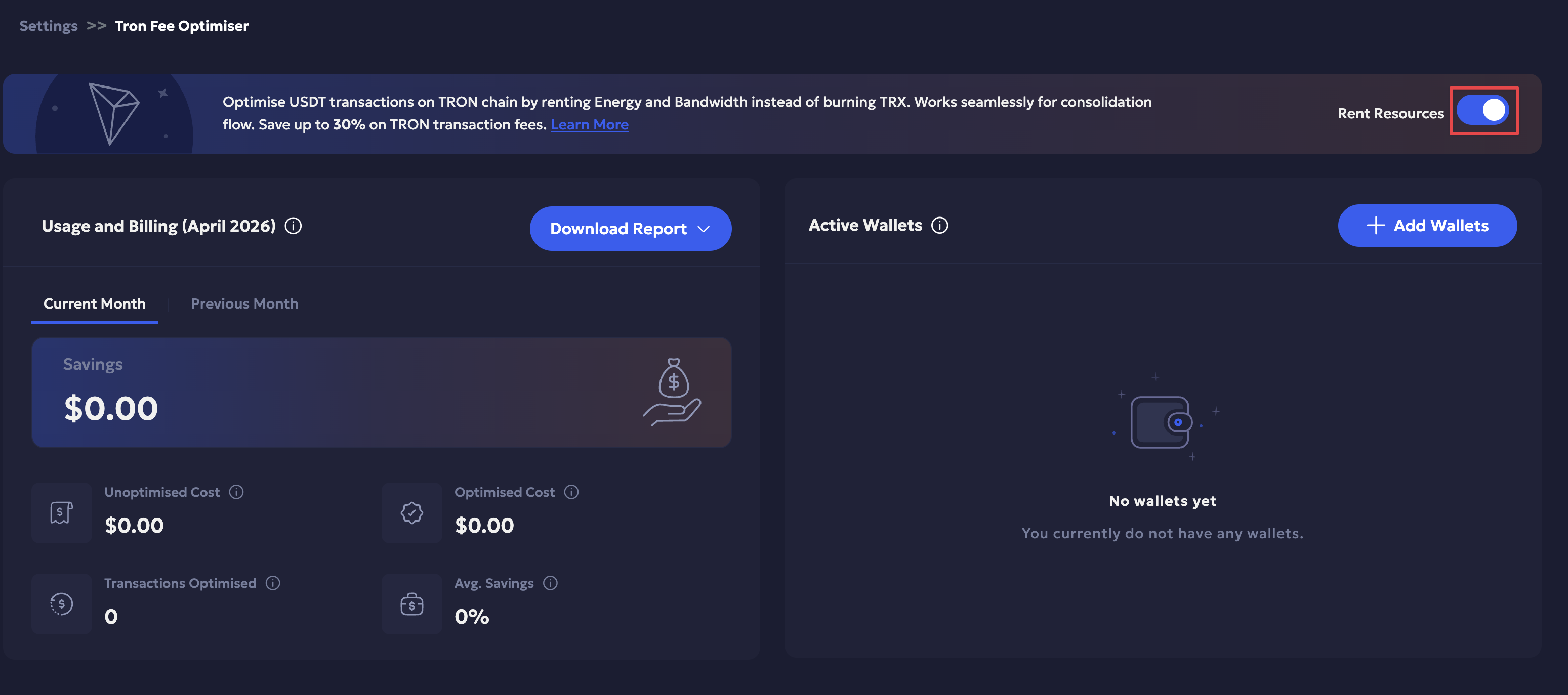
Toggle on to enable the Rent Resources strategy to the right.
-
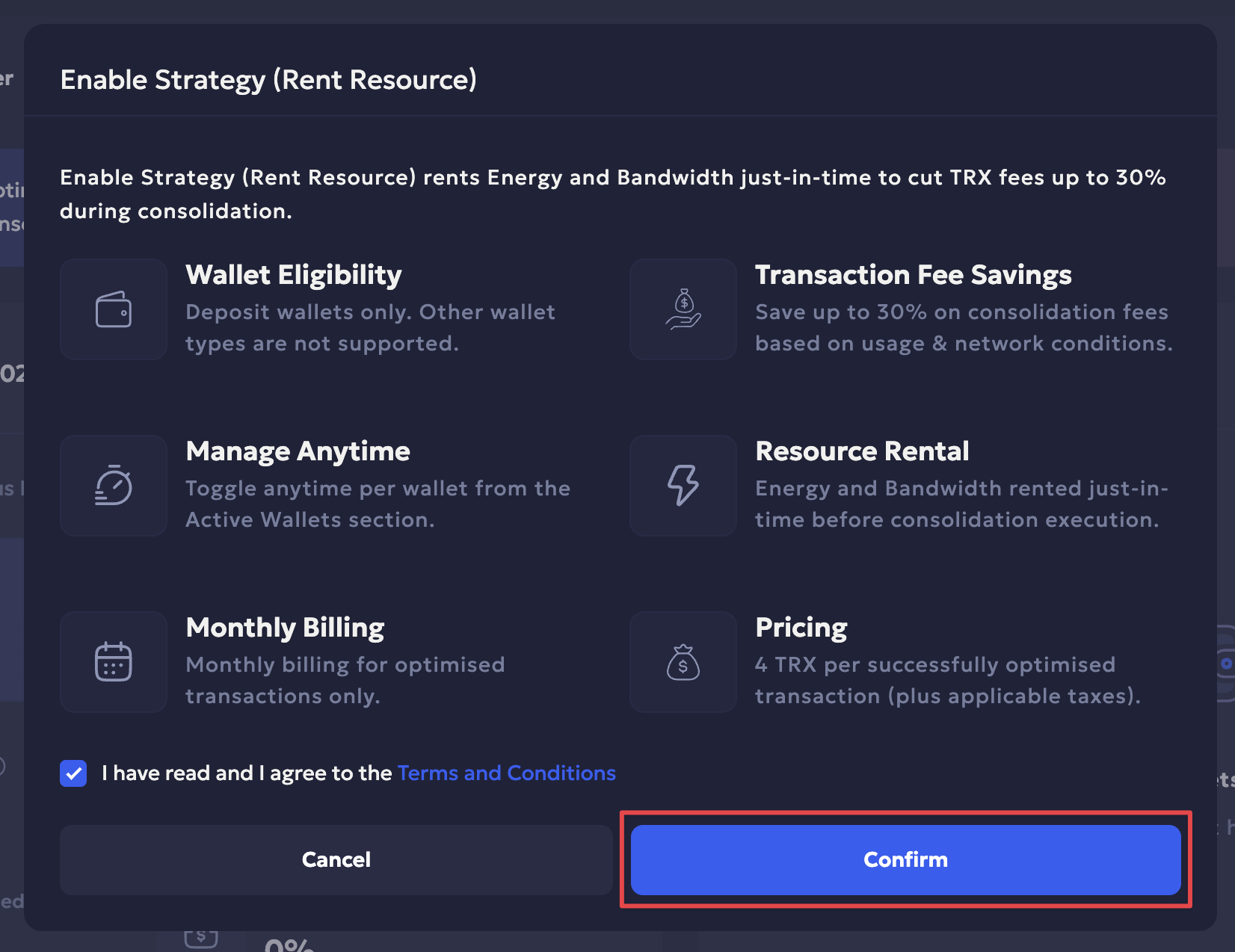
Select the checkbox to agree to the terms and conditions. Click Confirm.
-
Enter the 2FA code to confirm.
Add a wallet
-
Click + Add Wallets button to the right panel.
-
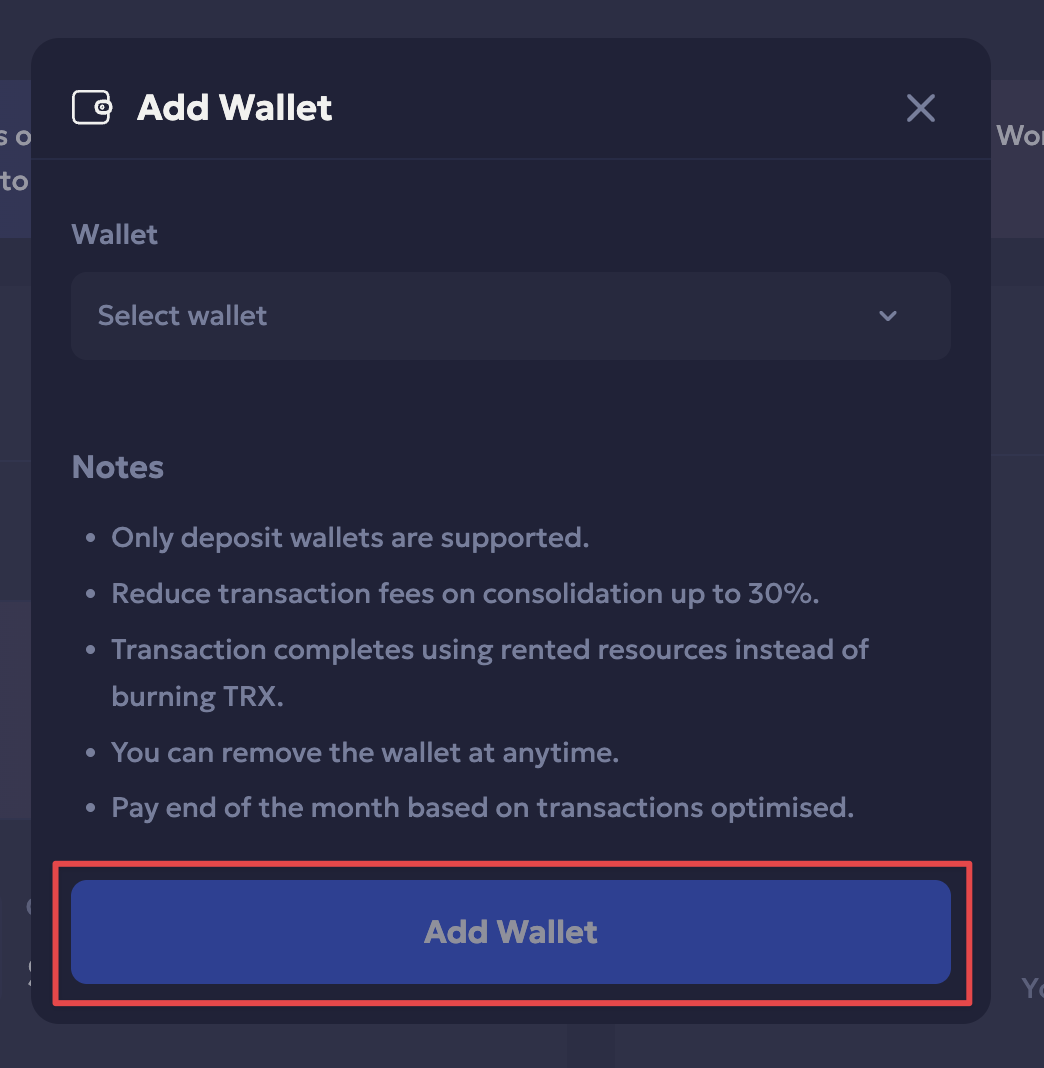
Select a Tron deposit wallet from the dropdown.
-
Click Add Wallet to confirm.
-
Enter the 2FA code to confirm and Close.
The wallet is successfully added to the list of active wallets. All consolidation transactions made from the respective wallet will be optimised using the Tron fee optimiser.
Delete a wallet
- Click the Delete icon next to the wallet to delete.
- Click Disable to confirm.
- Enter the required 2FA code to confirm and click Close once it is deleted successfully.
Usage and Billing
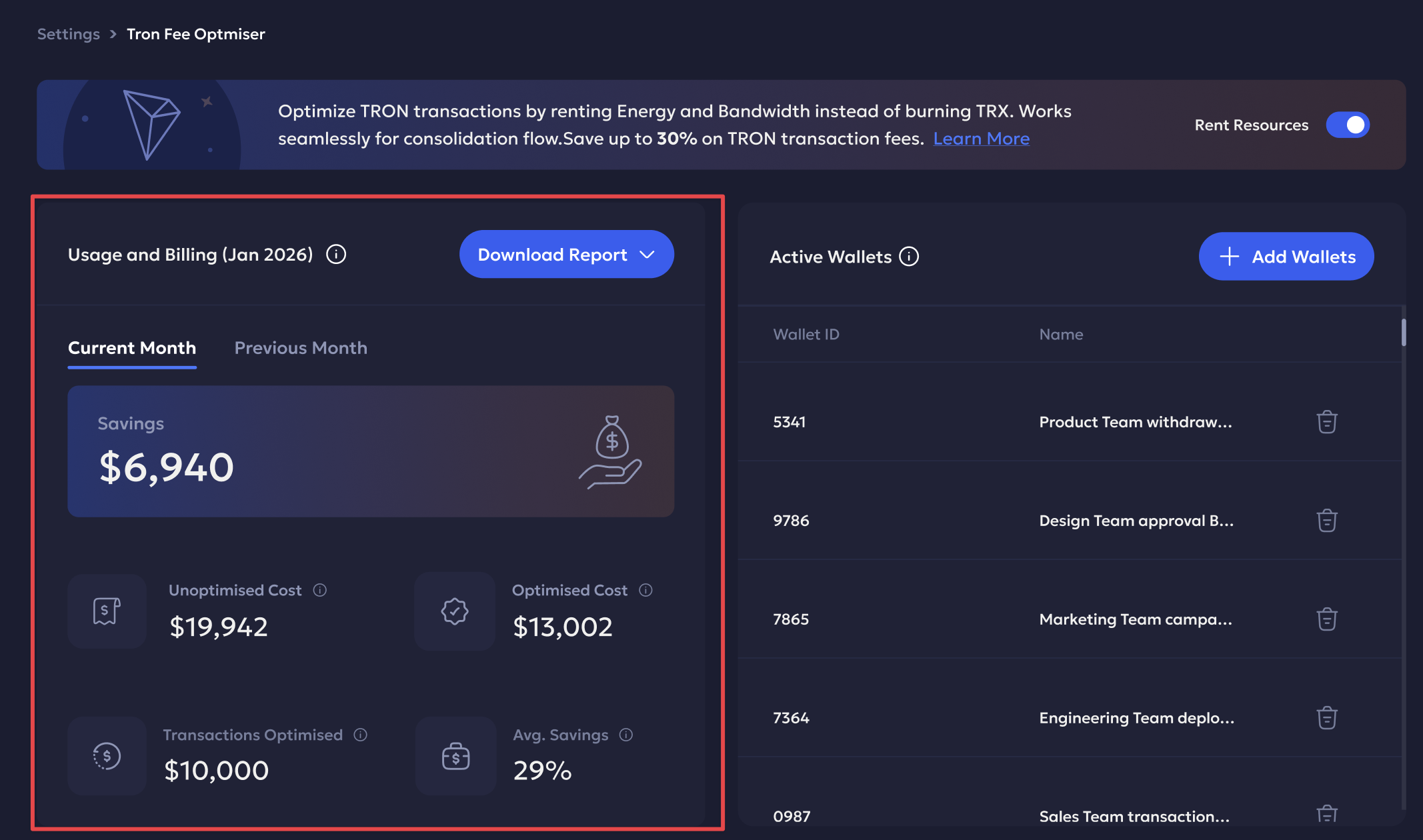
Billing: This is a paid feature with a pricing of 5 TRX for every successfully optimised transaction. Users are billed monthly based on the total fee saved for the optimised transactions only. The billing amount is calculated at the end of every billing cycle. You can check the accrued billing for every month and the previous in the analytics dashboard on the left panel. Switch between the tabs for the current month and previous month analytics.
Note
- The billing is accrued based on the estimated savings for the current month and the previous months. It does not apply if no savings are generated.
Usage: The following metrics are provided:
- Unoptimised cost: The expected on chain transaction fees without the Tron fee saver strategy enabled.
- Optimised cost: The expected on chain transaction fees when renting the Tron fee strategy.
- Transactions optimised: Total number of optimised transactions.
- Average savings: Total savings per transaction in USD.
Download Report
- Click the Download Report button on the left panel.
- Select the duration from the calendar dropdown.
The report will be successfully downloaded in CSV format.
Updated 6 months ago